Showing posts with label android. Show all posts

Thursday, 27 November 2014

Android 5.0 Lollipop release date, news and features..........

Android Lollipop
 
         It feels like a very long time since Google took the wraps of Android Lollipop back at Google I/O 2014. But now the wait is over: Android Lollipop has begun rolling out to select Nexus and Motorola handsets and tablets in the UK. The update itself is one of the biggest in Google’s history and introduces a raft of changes, updates, tweaks and optimizations.

Material Design

This is the BIG one, the face-slapper, the first thing you’ll notice when you boot up your phone –– providing it runs stock Android, of course. Material Design is Google’s new name for its radically altered design language. It looks great (as you can see below) and, importantly, it isn’t exclusive to Android. No, Material Design is coming to all Google services and apps across all major platforms and formats, including PC, Mac, iOS and the like.
Android LollipopProject Volta:

This is Google’s new initiative for improving battery life. It’s hardwired into Lollipop and runs deep inside the OS. At its core, Volta represents a concerted effort by Google to address one of the biggest problems affecting smartphones today: battery life. Using APIs like ‘Job Scheduler’, Volta makes your phone smarter about how it performs certain tasks and what it does when it’s not active –– i.e. sitting in your pocket or on your desk.
And best of all, it works too, as noted by the always-scientific ArsTechnica: “Installing the L preview on our Nexus 5 gave us two extra hours of runtime. These tests were done on a beat up, daily-driver phone, so the final numbers aren't necessarily indicative of what the L preview could achieve on a new device. It's the difference that matters.”
And as somebody who has long suffered with diabolical Nexus 5 battery issues, this is perhaps one of the best new features inside Android Lollipop. An extra two and a bit hours of juice effectively makes all my problems go away, more or less completely rekindling my love for last year’s Nexus.

Overview 

Multitasking in Android Lollipop has had a Material Design-inspired facelift and now goes by the name of Overview. Everything is now organized in stacks of cards and Overview gives you access to lots more in one setting than the previous version. Another cool feature of Overview is the ability to create multiple cards, so, if you’re writing an IM to one person in, say, Whatsapp, but have another conversation on the go, you can switch between the two in Overview.

Improved Notifications 

Notifications look a lot different in Lollipop. But it’s not just a cosmetic change; accessing your updates and interacting with alerts from email, IM or your social feeds has never felt more intuitive. Android Lollipop also brings notifications to the lockscreen and lets you interact with them right there, so you can achieve, delete and flag updates without even unlocking your phone.

Android Lollipop

       And if you have notifications you don’t want appearing on your lockscreen, well, Android Lollipop has a solution for that too. Simply add them to your “redacted” list of private notifications you don’t want appearing on your lockscreen. Inside Notifications-proper, you can also expand and view messages, reply and set mute options for certain messages, say, Facebook updates, for instance.
Android just reclaimed its crown as King of Notifications.

ART-like Performance

Previously, Android used the Dalvik engine to run third-party and core Google applications. But in Android Lollipop, Google has switched over to ART. We won’t get into the details of ART here –– it’s rather complex –– but the basic premise of how it works is this: applications have a large install footprint and can, as a result, operate in an “always ready” mode, so when you select it the application will spring into life faster than it would with the old method.
Google says ART is 4x faster than Dalvik and will improve the performance of any Android handset it runs on. Nexus 5 users were given the opportunity to switch earlier on in the year, but once Android Lollipop drops for everybody within the next few months, more and more handsets and tablets inside the Android Kingdom will begin benefiting from ART.

New NFC Tricks  

Android Lollipop will re-download all the applications you currently use on your phone direct from Google Play when you sign in. This is a new feature and a welcome addition –– Apple’s had it for years. But, there is another way to bring content from your old Android to a newer model: NFC.
The feature is called tap and go and, as the name suggests, works by tapping two handsets together. Once you do this, a link is initiated, and the content from your old phone will begin transferring to your new phone. In our tests it worked great, but it didn’t switch the passwords across for obvious reasons.

Priority Mode 

Like iOS’ “Do Not Disturb” mode, Priority lets you setup an environment on your phone where you’ll only be served certain notifications when you’re busy working on something. It’s a method of streamlining what can and can’t come through to you so you won’t be disturbed, for example, by your Auntie’s incessant requests for you to join the FarmVille community.
Android Lollipop

        When you set up Priority mode, Android asks you which applications you’d like to allow in a handy drop down menu. It also lets you set up a timer for the mode too, so if you’re only busy for an hour, just set it for an hour and it’ll revert back to normal once that time is up. Priority is an awesome feature that lets you keep in contact with important stuff while blocking out all the usual guff your phone normally bothers you with.

Pin Apps

         If your family or friends are always asking to borrow your phone for whatever reason but you don’t want them going elsewhere in your phone, looking at messages and your pictures, for example, then you’ll love Pin Apps mode. This is a simple and very useful addition to Android Lollipop that lets you add an extra layer of security to your phone when somebody borrows. Below is an example of how it works in practice.
Your child asks to play a game on your phone, you agree, but before you hand it to them, you tap the pin on the application in Overview. Once this is done, they’re locked to that application, and if they want to go elsewhere, well, they’re going to need your passcode. And, guess what: only you know that.

Saturday, 6 September 2014

How To Dual-Boot Your Device With Both Android And Ubuntu Touch

ubuntu  interface

dual boot ubuntu        Canonical has announced their dual-boot tool for Android devices but it is a developer preview version             
                      
         You would have noticed that Android-based smartphones and tablets are almost at par with computers. So, just like computers, dual booting these devices is quite possible. In this article, we’ll explain how to dual-boot your device with Android and Ubuntu Touch operating systems. Canonical has announced a dual-boot tool for its OS recently, but being a developer preview, it is not yet completely bug-free. So, use it at your own risk.       


The tool allows you to use both Android and Ubuntu Touch operating systems on your devices. It requires reflashing of the recovery partition of your device. The steps involved in the process are as follows.
But first, you need to meet the following requirements,

- You need an unlocked Android device.
- You need to backup the copy of your current operating system.

Let’s begin.

1. First, start your Ubuntu desktop, add the repository and update it.

sudo add-apt-repository ppa:phablet-team/tools
sudo apt-get update

2. Next you need to install the Developer Preview Tools

sudo apt-get install phablet-tools android-tools-adb android-tools-fastboot

3. If your Android device isn’t unlocked already, then unlock it. This can be done by enabling USB debugging on your Android device and then connect it to Fastboot on your Ubuntu desktop.

sudo fastboot oem unlock

4. Now you need to download the installation script and make it executable.

chmod +x dualboot.sh

5. Now you will be installing the dual booth Ubuntu Installer. This will be done by running the command given below along with your Android device connected to the computer. Here, if you are using a stock ROM, then use the first command. If you’re using a non-stock OS then the second command will come in handy.

- ./dualboot.sh FULL
- ./dualboot.sh UPDATE

A stock ROM is one that has no modifications, like an added SuperUser app etc. A non-stock ROM is like a CyanogenMod edition or something like that.

6. After executing the script, your device may reboot several times. This is normal, so don’t worry about it. When the process is completed, the Ubuntu Installer will be added to the Apps section. In order to install Ubuntu onto it, use the command below,

adb shell “su sh rm -rf /cache/*”
 
7. Open the Ubuntu Installer and choose ‘Trusty’ channel. This will be followed by a number of on-screen instruction that you will need to follow. These will also cover how to provide SuperUser grants. Let the installation continue after this.

8. Once the installation is completed, you will find the ‘Reboot to Ubuntu’ option. Choose this to boot your device with Ubuntu Touch.                        

Thursday, 29 May 2014

Top Apps to Tweak and Improve your Android phone

A list of apps worth considering for users who want widgets and real-time analysis of what is happening inside their Android smartphone. Also includes tools that can tweak CPU settings and speed of your rooted smartphone.

Best Android CPU and System info apps
Android is the most flexible and customisable mobile platform today and one has access to a number of apps with multiple uses. If you are one those who is interested in the hardware and wants to know what is cooking inside your Android device, then we have some apps that will not only give you access to system information but also provide certain tools to tweak the system hardware. Of course to change some settings you need to have a rooted Android device, so a word of caution for those who are new to Android devices.


CPU-Z
You probably have seen this on Windows as well where it tells you information about your hardware, processor speeds, clock speeds and more. The Android app gives you information about the following:
- SoC (System On Chip) name, architecture, clock speed for each core
- System information : device brand & model, screen resolution, RAM, storage
- Battery information : level, status, temperature
- Sensors


System Monitor
This app gives information including OS Build, CPU, Memory, Telephony, Networks, WiFi, Storage, Battery, Camera, Display, Sensors. There are also some monitors including a CPU Monitor which displays a graph of the current CPU load, a Memory monitor which displays a graph of memory usage and a Battery monitor which displays a graph of battery usage. The app also has its own Task Manager, an app manager and a bunch of widgets which give you real-time information right on your homescreen.


No-frills CPU control
You will require a rooted Android device for this application as it requires special administrative privileges. This allows you to change your CPU frequencies and also to use the highest supported frequency of the CPU which can help in gaining some extra performance.  You can also reduce the frequency of the CPU so that it uses less battery.
Download

System Info Droid
A simple looking app that gives you system and hardware information about your Android device and it also comes with a widget which provides info about your CPU Temperature, Frequency and CPU Usage. Other features of the app include:

- Processor info (Cores, Max Frequency, Real Time Frequency)
- Device info (Android version, Kernel, Compilation )
- Graphics Processing Unit info (GPU, OpenGL, Vertex and Texture Units)
- RAM Memory info (Total RAM, Available RAM)
- Storage Space info (Internal, External, SD Card)
- Display info (Screen Resolution, Screen Size, Density, Refresh Rate)
- Camera info (Megapixels, Flash Modes, Focal Length, Focus Modes, Effects)
- Temperature info ( System temperature and Battery Temperature )
- Sensors info (Accelerometer, Orientation, Magnetic Field, GPS, Light, Gravity )
- Export your System Report by E-mail
Download

CPU Tuner
CPU tuner gives you access to control your CPU speed and in turn helps you to have control over the power consumption of your Android device. You can also overclock your smartphone, although it isn’t advisable as there are chances you will damage it. There are also some profiles that can automatically switch on/off services of the device like mobile data, Wi-fi, etc.  This app also requires a rooted Android device.

Download

Wednesday, 28 May 2014

How to Dual Boot Ubuntu on Your Android Device


         Canonical has been developing Ubuntu for Devices for a while. Unfortunately, it hasn't exactly been easy to play around with it. However, if you've wanted to try it (and own a recent Nexus device), it's never been easier to dual boot.

ubuntu vs android

Recently, Canonical announced an update to its Ubuntu Dual Boot app—which allows you to run Ubuntu and Android side by side—that makes it easier to update Ubuntu for Devices (the name for the phone and tablet version of Ubuntu) directly on your device itself. This means that not only can you try out Ubuntu without ruining your phone, but you can see all the sweet new changes as they happen without much fuss. Sounds like a win-win for tinkerers.
Disclaimers: Ubuntu for Devices is still in a Developer Preview right now. As such, it is probably not feature complete enough to be your daily driver. Hence why we're dual-booting. Naturally, you should expect some bumps in the road. Additionally, Ubuntu uses HTML5 for its apps, but many "apps" on the platform are actually just the regular mobile sites. Even some of the included ones (like Twitter). At the time of this writing, some "apps" prompt you to install an Android app when you first run them. Don't do this. Ubuntu is not built on Android and Android apps won't run on it. Attempting to install them—or even opening a link to the app—can break things.


What You'll Need

To get started installing Ubuntu Dual Boot (and subsequently Ubuntu itself), here's what you'll need:
  • A Nexus 4, Nexus 7 (2013), or Nexus 10: These three are currently the only officially and actively supported Android devices. If you don't have one of these phones or tablets, you can check out the list of unofficially supported devices in the user-ported section here. Our guide, however, will focus on these three. They must also be running Android 4.4.2, so if you haven't updated yet, now's a good time.
  • Root access: Before you install Ubuntu, you'll need to make sure your phone or tablet already has root. Fortunately, the three Nexuses we're looking at can all use the fastboot oem unlock method. If you're not rooted first, take care of that and come back.
  • An Ubuntu installation (Not a Live CD): In order to install Ubuntu Dual Boot, you'll need desktop Ubuntu installed on your computer. Unfortunately, the Live CD version won't allow you to install the necessary components. However, if you have around 25GB of free on a spare drive, you can install it relatively painlessly.
  • ADB: You're going to need ADB installed to set up dual boot (and to root your device, if you haven't yet). Fortunately, in most modern Linux distros, you can do so with a simple command. In Ubuntu, open up a terminal and enter the following: sudo apt-get install android-tools-adb
  • Around 2.7GB of free space on your device: Ubuntu for Devices is going to need about 2.7GB of space for the OS and related files. If you're low on space, clear some out before you begin.
Once you've got everything set up, you're ready for the main event.


android vs ubuntu

How to Install Ubuntu Dual Boot :-


Canonical has created a (relatively) simple script to install the requisite dual boot app on your Android device. Once you've covered all your bases in the last section, fire up Ubuntu and perform the following:

Enable USB Debugging

First, you'll need to enable USB debugging on your phone or tablet, if it's not already. Here's how to do so:
  1. On your tablet, open the Settings app and select "About tablet."
  2. Tap "Build number" seven times to enable developer mode.
  3. Go back to the main Settings menu.
  4. Tap the newly-accessible Developer options.
  5. Enable USB debugging.
Once that's complete, connect your tablet to your computer with a micro USB cable.

Install the Ubuntu Dual Boot App

Next, download the Ubuntu Dual Boot installer script from here to your home directory. Then follow these instructions:
  1. Open a Terminal window (Ctrl+Alt+T).
  2. Run the following command to make the script executable: chmod +x dualboot.sh
  3. Execute the script by running this command: ./dualboot.sh
Note: In my tests with a Nexus 7 on a clean Ubuntu install, the script got caught in a loop attempting to execute a curl command (as seen below). If this happens to you, close the Terminal window, open a new one, and run the following command to install the package: sudo apt-get install curl This will install the necessary component. Once that's done, run the dual boot installation script again


Download and Install Ubuntu for Devices

The script will run automatically and reset your device several times. Once it's done, your phone or tablet should boot back up to the Android home screen. From there, open the new Ubuntu Dual Boot app from your app drawer. Then:
  1. Tap "Choose channel to install."
  2. Select a download channel (Canonical recommends "utopic").
  3. Tap "Grant" when asked for superuser access.
  4. Once Ubuntu is finished downloading and installing, tap Reboot to Ubuntu.
Congratulations! You now have Ubuntu running on your phone or tablet. Now you just need to access it.
android vs ubuntu

How to Switch Between Android and Ubuntu


 ubuntu

Unlike many other dual boot solutions, you don't choose which operating system you want at startup. Instead, once you've booted into Android, open the Ubuntu Dual Boot app and tap "Reboot to Ubuntu". Your device will then restart into Ubuntu. No matter which OS you're in, however, a hard reset will always boot to Android. This is usually performed by holding down the power button for about ten seconds. There's also a Dual Boot app in Ubuntu for switching back to Android if you prefer.
You can also update Ubuntu from either the Ubuntu Dual Boot app in Android, or from the system settings in Ubuntu. However, both methods require you to be in Android to actually install the update, so it's probably best to just boot into Android first when it's time to update anyway.


Saturday, 17 May 2014

Moto E : Top Ten reasons to buy....

Moto E: 10 reasons to buy it
Priced at Rs 6,999 only, its hard to ignore the all new Moto E as Motorola says that its "priced for all". The company made a big comeback in the mobile phone market with its mid-range wonder Moto G which is still a great buy at its price. Even its higher-end Moto X has been doing great as compared to smartphones from other manufacturers. With the new Moto E, Motorola breaks even more barriers and gives you some exceptional features at a very affordable price. Here are the 10 reasons why we think that you should buy the Moto E.


1. KitKat to boot
It is quite rare to hear that a cheaply priced smartphone runs on the latest version of Android. Companies other than Motorola keep launching new smartphones that cost a lot more than the Moto E but are still unable to launch them with the latest taste of Android OS. Motorola defies that concept and gives you Moto E with the latest version of Android right out of the box. The smartphone features Android 4.4.2 KitKat.
 

2. Android updates

Motorola promises that all of its phones will be among the first ones (apart from Nexus devices) to recieve the latest Android updates. It says that Moto E "will receive at least one software update to bring it up to date with the current KitKat 4.4.3 operating system." Looking at the development of Android by Google, Moto E is likely to recieve even more updates in future as Android becomes even more optimized for low-end phones. Working closely with Google gives Motorola even more advantage in the race to latest Android updates. So far, Motorola has delivered in this matter on all of its Android devices.


3. Specifications

An Android smartphone that costs only Rs 6,999 featuring such specifications is quite exceptional. Even the Indian manufacturers, who are known to launch low-cost devices with good hardware, will find it difficult to tackle Motorola on this front. Also, the way these specs handle KitKat is superb. There is no lag and navigation feels smooth except a few hiccups while browsing heavy sites or gaming. 1GB of RAM gives enough space to run multiple apps at the same time.

4. Build quality and design

Moto E feels just as premium as the Moto G. It has a similar design with a curved back and the glossy front panel. The phone feels solid in hand as it weighs almost the same as its bigger brother. As we have always stressed, the phones with these screen dimensions sizes are the ideal size for a durable smartphone. The phone neither feels too large nor does it feel too small. It's perfect for one-hand operation and is made of excellent polycarbonate plastic that feels smooth and premium unlike other low-cost phones.

5. Battery life

One of the strongest features of Moto E is its battery. The smartphone packs a 1980mAh battery which is excellent for such a low-cost phone. This battery packs enough juice to last a full day of single charge. It is marginally smaller than the one on Moto G which packs a 2070mAh battery but considering the lower-end hardware, the battery on Moto E is more than good enough to keep you connected to your networks throughout the day. Motorola rightly claims that Moto E has the "power to last".


6. Gorilla glass 3 protection and Nano Coating

Motorola surprised everyone at the launch event when it announced that the Moto E features high-end screen protection. Such protection has only been found on premium devices that cost way much more. Moto E comes with the best screen protection which truly makes it "built to last". With such a high-class protection of Gorilla Glass 3 for your screen, you don't need to worry about everyday scratches. Also, Moto E doesn't just have Gorilla Glass 3 protection to help you worry less about your phone. It also features Nano Coating which makes it water resistant to occasional splashes. So even if your Moto E got wet or fell in water, it still has much better chances of surviving as compared to any other phone in its category. Water-proofing features were a thing of premium high-cost smartphones only. Motorola shows that its possible on low-cost devices as well. We will put the feature to a test in our detailed review soon.


7. Screen quality

At 4.3 inches, the screen on the Moto E is the best in its class. Currently, no other phone in its category beats the quality of the display on this phone. The display is bright and at a resolution of 960x540 pixels, it is sharp enough as well. It features a respectable 256ppi (pixles per inch) which makes reading text easy and, photos and videos look great. Even while zooming in on text in websites, the text looks sharp and easy to read. For this price, it is clearly the best screen on a smartphone in its class. It also features smudge-proof coating on the front which keeps it clean of the usual residue left by touches and dust.


8. Accessories and support

Just like the Moto G, Moto E comes with a wide range of cases and covers known as Motorola Shells which are sold separately. Users will get a wide variety of colors to choose from. Motorola gives 9 colors for Shells and 5 different colors for its Grip shells, which are designed to provide protection from physical damage. The Shells give your phone a different personality with each different cover. You can buy your desired color shell on Flipkart which is also the lone seller of the Motorola devices in India.


9. Compact and comfortable

Featuring dimensions of 124.8x64.8x12.3 (mm), Moto E is compact and durable. It easily fits into the pockets and is easy to carry around. It weighs 142 grams, which is quite ideal. Just like the Moto G, its ergonomics are designed to fit well in hand. It might be quite thick in the middle but its very slim towards the edges (6.2mm). This gives it a sleek look and makes it extremely comfortable to use. Even the curve on the back makes it easier to hold especially while moving or walking around.
 

10. It's a Moto

Motorola is undoubtedly a trusted mobile phone brand. It has already sold millions of smartphones in India, Brazil and many countries of Europe. Not only does it provide excellent products, it also gives an excellent after-sale support. After-sales support has been a huge problem for Indian manufacturers who are able to provide good devices at reasonable rates. With Moto E, you don't have to worry about such problems. Also with a Motorola device, you can always rely on the company with the best possible Android experience and support.


Moto E is a marvellous smartphone which is tailor-made for users who want excellent value at a very affordable price. It might be missing features like flash and a front camera but looking at its price, it is the currently the best phone that Rs 6,999 can buy right now.
Enhanced by Zemanta

Saturday, 10 May 2014

OnePlus One Vs Nexus 5

Hardcore Android fans are hard to please. We should know. So for a new company to attempt to please the most vociferous of Android users with a high-end phone that also manages to compete on price is ambitious to say the least. But that's what OnePlus, with their One phone, is doing. And if a day or so with the phone is indicative of the overall experience, they might have actually achieved success.

The OnePlus One fits squarely in the super-sized "phablet" category with a 5.5" 1080p LCD screen, and other specs like a screaming Snapdragon 801 processor, 3GB of RAM, a 13MP rear camera, a 3100mAh battery, and up to 64GB of storage put it near the top of the Android pack. Throw in the fact that the One is running a customized version of CyanogenMod (labeled "CyanogenMod 11S," built on KitKat 4.4), and you have a truly unique combination of hardware and software. It doesn't hurt that the phone is being sold Nexus-style in an unlocked LTE flavor. At $299 for the 16GB model, you've got a device that's worthy of consideration for any hardware junkie... at least on paper.
wm_IMG_3006 wm_IMG_2993 wm_IMG_3004
The One looks and feels like a high-end Oppo device, and that's probably no accident: it's a big, smooth slab, with sharp corners for the edge and nowhere else. The rear of the phone has a slight bow outwards like the Nexus 5, making it a little easier to grip than a flatter device like Sony's Xperias. The configuration is pretty standard - you won't find any rear-mounted buttons or swiveling cameras here, just your basic slate layout.
On the front the black screen contrasts with the white and chrome shell (the 64GB model is black), and the capacitive navigation buttons beneath the screen are just barely visible with a blue illumination. These seem a little out of place on a "pure" Android device, especially considering the odd ordering: a pre-4.0-style Menu button on the left, Home in the middle, Back on the right. You activate the Recents menu with a double-tap of the Home button, and slide up to see the Google Now button. Not everyone likes physical navigation buttons, and I imagine that even fewer of our readers will appreciate the non-standard layout. You can change this up in the software - more on that later.
OnePlus One
The screen is circled by a chrome-painted plastic ring that's slightly recessed, then the white shell underneath. The MicroUSB 2.0 port is on the bottom, flanked by dual speakers (real dual speakers - this isn't a prosthetic grille like the Nexus 5). The slim and slightly hard-to-hit volume rocker and power buttons are on the left and right sides, respectively, and the only thing up top is the headphone jack. On the back you'll find the camera and dual LED flash in a surprisingly compact chrome module, with classy logos for OnePlus and CyanogenMod, plus the typical model and FCC info.
The physical design is very standard, very sparing, but it works well. The One isn't going to turn heads like the HTC phone of the same name, and it's not divisive like the dimpled Galaxy S5, but it's more than presentable. Screen size preferences vary greatly, and I usually don't go above 5" for my personal machines, but I will say that the thin bezels and 8.9mm body makes the phone much easier to use than it might otherwise be.
The most surprising thing about the OnePlus One is just how solid it feels, for lack of a better word. Compared to the Nexus 5 (which uses essentially the same slate design) it's a rock, and it's close to the admirable build quality of HTC and Motorola. I always think of the Nexus 5 as the phone equivalent of a pony car: it's cheap and powerful, but the build absolutely reflects the purchase price. The OnePlus One feels like it should cost much more than the $300 it does. I know that the decision to forego a removable battery is a divisive one, but I doubt that the phone could feel so solid if the back came off.

Software is CyanogenMod. That's it. If you've used a recent CyanogenMod 11 build, you know what to expect here: stock Android with lots of useful additions and tweaks. The "11S" build has some unique touches, most notably in the lock screen, but otherwise it's a more customizable version of KitKat, with all the speed and stability that this suggests. The Play Store and Google apps are included from the get-go, and though the phone is not rooted out of the box, tinkerers will be glad to know that the bootloader is easily unlocked.
wm_2014-05-07 00.02.43 wm_2014-05-07 00.02.48 wm_2014-05-07 00.03.00
The navigation buttons deserve some attention here. Just like CyanogenMod loaded up on a phone with capacitive buttons, OnePlus One users have a choice between the build-in buttons and a somewhat superfluous virtual nav bar, which can be customized to a degree. You can switch between them in the settings menu. When the virtual bar is enabled, the button backlight (which is pretty dim to begin with) turns off, and the buttons basically disappear. It's an interesting approach, but I get the impression that OnePlus is trying to have its cake and eat it too and please all users, rather than making a smaller phone by omitting the hardware buttons. That, or they're simply recycling some Oppo components and letting CyanogenMod handle the software side.
wm_IMG_2970 wm_IMG_2971
wm_2014-05-06 22.58.10 wm_2014-05-06 22.58.28
After a solid day of use, everything seems to be pretty impressive, with one exception: the earpiece. While the One can pull down a reliable AT&T HSPA signal even in my remote area, the speaker above the screen is weak and low even at the highest volume setting. You need to place it almost perfectly over your ear canal to hold a conversation, even in an entirely quiet room. It's also important to note the lack of a MicroSD card slot, which some who "Never Settle" might object to. The 64GB model, which will be available for a very reasonable $350, may mitigate this somewhat.

Monday, 21 April 2014

Top Racing Games for Android...

Top Racing Games for Android

            If you love playing racing games and are always eager to burn some rubber, here's the list for top racing games for Android phones and tablets.
Top 10 racing games for Android devices.If you just got an Android device, then you are bound to download  some games onto it and who doesn’t like racing games? Grinding metal, burning rubber, drifting, nitrous boosts, challenging race tracks and the exotic cars pump up your adrenaline rush. So I  have listed some of the best racing games available on the Google Play store for Android smartphones and tablets.

The following list of car racing games are the best pick from the Google Play store. The top rated and best  Android Games are only listed here. Lets start the Racing cars in your Android phone.

Real Racing 3


     With stunning graphics and car detailing, the game is THE title to have if you love gaming on your Android device. As all car racing games go, you progress and unlock new levels, races and of course new cars. It is really heavy on memory, so be sure you have enough space to store the game as well as powerful hardware for the best gameplay performance. The game has a number of licensed vehicles and it gives you a proper experience of a true racer. If you are a car and racing enthusiast, you should definitely give this game a go.
 Download


Asphalt 8: Airborne

One of the most popular games by Gameloft has been the Asphalt car racing series and the latest version of the game is available free on the Google Play store. Ashpalt 8: Airborne brings in a great racing experience where apart from the races; you need to perform high speed aerial stunts, knockdowns and drifting. The game has over 40 car models to choose from. There are also a number of tracks that one can scroll through and a career mode that has over 180 events in 8 seasons. You can also play multiplayer and also have a local race with your friends on Wi-Fi.  Download link


 GT Racing 2

 gt racing 2 android app


Another great looking racing game from Gameloft is GT Racing 2. The game truly tests your driving skills and you get to play over 1400 events including classic races, duels, knockouts and overtakes. You can choose exotic cars from Mercedes-Benz, Ferrari, Dodge, Nissan, Audi, Ford, and more. Just like Asphalt, the game comes with a multiplayer mode where you can compete with players from all over the world.
Download

Riptide GT 2


  Riptide, the famous speedboat racing game, now has a sequel with Riptide GT 2. The game features a single player career mode and online four-way multiplayer mode. The best part is that you can earn points to buy and upgrade your speedboats. The game involves you to perform stunts during the race. The career mode has about 30 races and various game modes like sprint for podium positions, hot lap, elimination and freestyle events.
 Download

 CSR racing

 csr racing android app

 A great racing game is CSR Racing which takes you to the urban streets of underground drag racing. The game is more of precision than steering and controlling your car. The game involves you to have a perfect start launch and timed gear shits to win the race. The game offers decent graphics and a nice lot of cars to choose from. The game was updated on March 6. This update added the ability to rearrange your garage, turbocharge your season, and buy a bigger gas tank.If you're looking for a racing game that truly captures the look and feel of your favorite real-world cars, this is your best bet. This game currently has a 4.5 rating on Google Play and is published by NaturalMotion Games.
You can tweak your cars with turbo chargers and nitrous boosters to make them faster and more agile.
 Download


 Angry Birds Go


 Bird slinging madness continues with Rovio’s latest addition to the famous Angry Birds game franchise. This time there is a twist as the new game now takes you on a racing track. Angry Birds Go is a downhill soapbox racing style game where you can play as the birds or the piggies to win the race. Every character has a special power which you can use during the race and you also get to upgrade your car to make it faster. It’s a fun game and is definitely a good break from all the previous Angry Birds games.
Download

 Re-Volt 2


http://technotrendz.org/wp-content/uploads/2014/01/How-to-download-and-install-RE-VOLT-2-for-PC.jpgAlways wanted to have a remote controlled car when you were a kid? Well then Re-Volt 2 takes you back to your childhood memories. This is a fun game which takes you the world of remote controlled car racing, which means that the cars that you steer are much smaller. There is a variety of car to select from including formula cars, sports cars, monster cars, and even trucks. The game has challenging race tracks and enables you to have some nice upgrades to your car which makes the racing experience even more fun. You can even play multiplayer or with your friends on a local Wi-Fi network.
Download

 Hill Climb Racing


This game is for the less serious gamer as the game only involves you to drive through hilly roads and gather power-ups and coins. There are no high end graphics but the game is quite addictive.  You get to play as Newton Bill, where you need to help him conquer the highest hills by driving through bumpy landscapes. You need to precise on your jumps and avoid getting flipped over.  You can also gain bonuses from doing tricks and collect coins to upgrade parts to your car including the engine, suspension, tires and 4WD.
Download


Turbo Racing League


 Turbo Racing League is based on Dreamworks Studio’s movie Turbo which is based on a character named Tito the snail who aspires to be racer (yes, ironic). The game involves you to create a racing snail and then swipe the snail around the track which is launched from a slingshot. The track has power boosts which make your snail gain pace and you need to gather the scattered tomatoes on the track which allows you to upgrade your snail.
Download


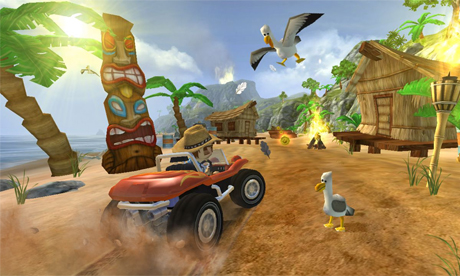
Beach Buggy Blitz


http://static.guim.co.uk/sys-images/Guardian/Pix/pictures/2012/9/13/1347548785208/beach-buggy-blitz.jpgBeach Buggy Blitz takes you on a wild ride where you can smash and crash obstacles and collect coins and power-ups like fire-spitting Boost, the coin-tastic Coin Bubble, and a Shield that lets you smash through anything. There are a number of characters and cars that can be unlocked and be further upgraded. The game does remind us of Mario Kart and features some good looking and challenging tracks.
Download


Speed Night Racing HD


Speed-night-racing-game--the-best-car-racing-Game-for-Android-users


  Speed night Racing HD is the most fun and challenging 3D racing game on your Android phone ever. Driving your car with crazy speed and enjoying the beautiful scenery. Super exciting racing unites with splendid urban night scene!

 Download


Road Warriors


Road Warriors- the best car racing Game for Android users Road Warrior is an addictive multiplayer combat racing game! Race against opponents and shoot them with your guns. Gain respect to race against bosses. Beat them and you will get their extremely tuned racing, killing machines!


http://alicia.mobile9.com/download/as/ios/04/61/461481850/screen6.jpg
Road Warrior is a super addicting combat racing game!
Race against opponents and destroy them with your guns. Accumulate victories to be able to race against the bosses. Beat them and you will get their cars!
+ Execute perfect flips to gain coins and nitro boosts.
+ Multiple car options from sedans to massive trucks!
+ Explore and discover multiple tracks. There are many paths within a single track. There's always a best strategy for each car!                           Download link                                                                                                                                     


Drag Racing


Drag Racing for Android is one of the hottest drag racing games out there. The gameplay in Drag Racing is simple — just race against another car in a straight line. Challenge your friends or race random opponents online. Race nine players at time and show off your skills in 1/4-mile, 1/2-mile and 1-mile races. Win a race and you can earn cash to upgrade your car. See how fast you can go in this addicting game.Drag Racing currently has a rating of 4.5, and was published by Creative Mobile Games.You can download Drag Racing Android app from the Google Play Store here.


Keep visiting our Facebook page for more stuff .You can also follow this blog on twitter to keep yourself updated on all the latest tricks and trends from the tech world....